


















Zabbix is one of the most popular open source and enterprise-class monitoring solutions. It allows you to monitor servers, networks, virtual machines, databases, web services, cloud environments, containers, applications, and more.
In this article, we show you how to improve incident response by configuring Zabbix alerts to be sent automatically via phone calls, through external integration with notification software, similar to what you might do with other APMs.
Improve your incident response times
One of the key advantages of Zabbix is its flexible notification system: it can alert you when problems are detected in your systems, be it service downtime, overload, database errors, network saturation, etc.
Zabbix allows you to send alarms through multiple channels: email, SMS, execution of custom scripts or integrations via webhooks, giving you the flexibility to adapt it to different workflows.
By integrating Zabbix with an external solution that converts these alerts into automated phone calls, you close an important gap: the lack of native voice notifications. This means that, in the event of a critical incident outside of normal business hours, your team can be contacted immediately, preventing the problem from remaining unattended until the next business day.
If your goal is to improve platform availability and user experience, reducing MTTA (time to acknowledge) and MTTR (mean time to repair) becomes a key indicator. Automated phone call notifications can play two critical roles in this process:
- Reduce MTTA: with a predefined decision matrix and a well-implemented integration, the time between incident detection and notification of the responsible party can be reduced to seconds.
- Reduce MTTR: by allowing 24×7 support or intervention through a shift and immediate alerts scheme, the resolution of critical incidents is expedited.
In short, combining Zabbix with an automatic telephone alert system can significantly increase the responsiveness of your IT team, improve operational continuity and minimize the impact of failures on your services.
Configure the Zabbix integration
As a prerequisite, you must have an account created in 24Cevent, the platform that will perform the automatic 24×7 notification of Zabbix alarms by phone calls.
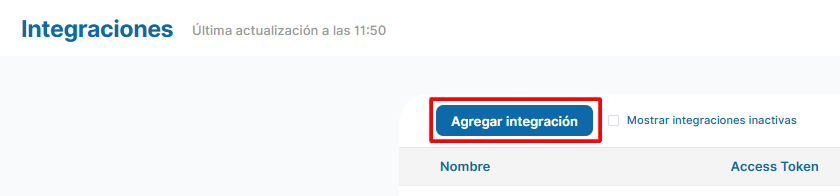
First, in 24Cevent, log in with your credentials and go to the “Integrations” section. There you should click on “Add integration”, and you will see a mini manual on how to correctly connect your integration.
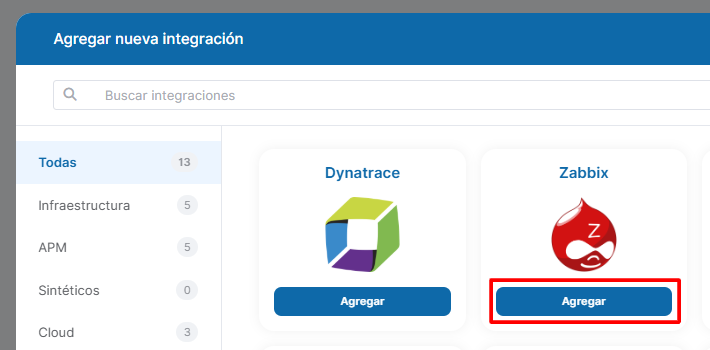
After this step is done, go immediately to Zabbix.
In order to send alert events to the 24Cevent Event Manager two actions need to be performed:
- Deploy integration script on Zabbix server
- Create necessary configurations over the web in Zabbix
Installer for Zabbix to 24Cevent integration
- To download the script run this curl
curl -s -o instalador_zabbix.sh https://cdn.24cevent.com/scripts/instalador_zabbix.sh- Which will download the installer named installer_zabbix.sh, permissions must be assigned:
chmod 775 instalador_zabbix.sh- And run with root, where to run it we must take into account the following parameters:
./instalador_zabbix.sh [host] [port] [webhook url]Command:
./instalador_zabbix.sh app.24cevent.com 443 "https://app.24cevent.com/proxy/forwarder/json/?access_token=UCkqvz9twcIyK3Ii8WmMuINkdNkOIP&channel=d9ee2d21e59e9ee822d9061edfc1dbfe25d2ed9de8df85942ac733bb86b4ba7f&no_receiver"
At this point the proxy should already be created, otherwise we can run the example to validate the connection, permissions and directories. If later we have a different proxy we can run it again and the created file will be replaced.
Output:
[INFO] Generando el script de integración en zabbix_integration_24c.sh... [OK] Script desplegado correctamente. [INFO] Verificando conectividad a ******************* [OK] Conectividad confirmada con ******************* [INFO] Enviando alerta de prueba... % Total % Received % Xferd Average Speed Time Time Time Current Dload Upload Total Spent Left Speed 100 3031 0 2437 100 594 4305 1049 --:--:-- --:--:-- --:--:-- 5355 Ejecutando--- curl -s -w n[HTTP_CODE]: %{http_code}n -o - -X POST -H Content-Type: application/json -d '{"group":"INFRAESTRUCTURA","estado":"Warning-{EVENT.RECOVERY.STATUS}","lastValue":"83.98 %","problemName":"{#FSLABEL}(E:): Disk space is low (used > 80%)","external_id":"TOKEN-11320-687072-12544173","address":"TEST","message":"{#FSLABEL}(E:): Disk space is low (used > 80%) - GENERICO_INFRAESTRUCTURA - Problem started at 00:07:59 on 2025.06.27","accion":"No hay un tag de Accion","service":"{#FSLABEL}(E:): Space utilization","acciones":"No hay tags de accion","ambiente":"PRODUCTIVO","service_type":"SERVER","host":"PRUEBA INSTALACION","problemId":"12544173","original_problem_id":"12544173"}' https://skinner.dparadig.com:8022/forwarder/json/?access_token=AWP5A6RIwwogLSOc3Ag0PgeJQ23KNK2&channel=zabbix_clinica-alemana_cmc&no_receiver [RESPUESTA DEL PROXY]: {"status":"OK","message":null,"extra":{"*******************":{"json":"{"estado":"Warning-{EVENT.RECOVERY.STATUS}","servicio":"NOTIFICACION_ZABBIX","custom":{"Source":"ZABBIX","address":"TEST","host":"PRUEBA INSTALACION","Last_value":"83.98 %","timestampproxy":"1751246259173","service_output":"{#FSLABEL}(E:): Disk space is low (used > 80%)","service":"{#FSLABEL}(E:): Space utilization","Accion":"No hay un tag de Accion","Service_type":"SERVER","Ambiente":"PRODUCTIVO","Original_problem_ID":"12544173","severidad":"Major","Group":"INFRAESTRUCTURA","random":"50987","Acciones":"No hay tags de accion"},"external_id":"TOKEN-11320-687072-12544173","message":"{#FSLABEL}(E:): Disk space is low (used > 80%) - GENERICO_INFRAESTRUCTURA - Problem started at 00:07:59 on 2025.06.27","criticidad":"Major","access_token":"pooJa3GQZXzSrs0W6V6tGFfLJgQmucmea3Tz4oEGpV0k4VCZ==","requestUID":"null-1751246259173-50987"}","status":"warning Sistema actual está en modo de respaldo. Alarma recibida pero no procesada."},"generic":{"url_forwarder":"https://app.24cevent.com/api/clientapi/sendNotification,https://sniha.dparadig.com:8061/clientapi/sendNotification","token":"true"},"status":{"details":"","status":"OK"},"https://app.24cevent.com/api/clientapi/sendNotification":{"json":"{"estado":"Warning-{EVENT.RECOVERY.STATUS}","servicio":"NOTIFICACION_ZABBIX","custom":{"Source":"ZABBIX","address":"TEST","host":"PRUEBA INSTALACION","Last_value":"83.98 %","timestampproxy":"1751246259173","service_output":"{#FSLABEL}(E:): Disk space is low (used > 80%)","service":"{#FSLABEL}(E:): Space utilization","Accion":"No hay un tag de Accion","Service_type":"SERVER","Ambiente":"PRODUCTIVO","Original_problem_ID":"12544173","severidad":"Major","Group":"INFRAESTRUCTURA","random":"50987","Acciones":"No hay tags de accion"},"external_id":"TOKEN-11320-687072-12544173","message":"{#FSLABEL}(E:): Disk space is low (used > 80%) - GENERICO_INFRAESTRUCTURA - Problem started at 00:07:59 on 2025.06.27","criticidad":"Major","access_token":"pooJa3GQZXzSrs0W6V6tGFfLJgQmucmea3Tz4oEGpV0k4VCZ==","requestUID":"null-1751246259173-50987"}","status":"warning Alarma recibida y redirigida al mutador."}}} funcionandon ahora resolviendo alerta generada % Total % Received % Xferd Average Speed Time Time Time Current Dload Upload Total Spent Left Speed 100 3004 0 2415 100 589 5171 1261 --:--:-- --:--:-- --:--:-- 6418 Ejecutando--- curl -s -w n[HTTP_CODE]: %{http_code}n -o - -X POST -H Content-Type: application/json -d '{"group":"INFRAESTRUCTURA","estado":"Ok-{EVENT.RECOVERY.STATUS}","lastValue":"83.98 %","problemName":"{#FSLABEL}(E:): Disk space is low (used > 80%)","external_id":"TOKEN-11320-687072-12544173","address":"TEST","message":"{#FSLABEL}(E:): Disk space is low (used > 80%) - GENERICO_INFRAESTRUCTURA - Problem started at 00:07:59 on 2025.06.27","accion":"No hay un tag de Accion","service":"{#FSLABEL}(E:): Space utilization","acciones":"No hay tags de accion","ambiente":"PRODUCTIVO","service_type":"SERVER","host":"PRUEBA INSTALACION","problemId":"12544173","original_problem_id":"12544173"}' https://skinner.dparadig.com:8022/forwarder/json/?access_token=AWP5A6RIwwogLSOc3Ag0PgeJQ23KNK2&channel=zabbix_clinica-alemana_cmc&no_receiver [RESPUESTA DEL PROXY]: {"status":"OK","message":null,"extra":{"*******************":{"json":"{"estado":"Ok-{EVENT.RECOVERY.STATUS}","servicio":"NOTIFICACION_ZABBIX","custom":{"Source":"ZABBIX","address":"TEST","host":"PRUEBA INSTALACION","Last_value":"83.98 %","timestampproxy":"1751246263647","service_output":"{#FSLABEL}(E:): Disk space is low (used > 80%)","service":"{#FSLABEL}(E:): Space utilization","Accion":"No hay un tag de Accion","Service_type":"SERVER","Ambiente":"PRODUCTIVO","Original_problem_ID":"12544173","severidad":"Ok","Group":"INFRAESTRUCTURA","random":"33954","Acciones":"No hay tags de accion"},"external_id":"TOKEN-11320-687072-12544173","message":"{#FSLABEL}(E:): Disk space is low (used > 80%) - GENERICO_INFRAESTRUCTURA - Problem started at 00:07:59 on 2025.06.27","criticidad":"Ok","access_token":"pooJa3GQZXzSrs0W6V6tGFfLJgQmucmea3Tz4oEGpV0k4VCZ==","requestUID":"null-1751246263647-33954"}","status":"warning Sistema actual está en modo de respaldo. Alarma recibida pero no procesada."},"generic":{"url_forwarder":"https://app.24cevent.com/api/clientapi/sendNotification,https://sniha.dparadig.com:8061/clientapi/sendNotification","token":"true"},"status":{"details":"","status":"OK"},"https://app.24cevent.com/api/clientapi/sendNotification":{"json":"{"estado":"Ok-{EVENT.RECOVERY.STATUS}","servicio":"NOTIFICACION_ZABBIX","custom":{"Source":"ZABBIX","address":"TEST","host":"PRUEBA INSTALACION","Last_value":"83.98 %","timestampproxy":"1751246263647","service_output":"{#FSLABEL}(E:): Disk space is low (used > 80%)","service":"{#FSLABEL}(E:): Space utilization","Accion":"No hay un tag de Accion","Service_type":"SERVER","Ambiente":"PRODUCTIVO","Original_problem_ID":"12544173","severidad":"Ok","Group":"INFRAESTRUCTURA","random":"33954","Acciones":"No hay tags de accion"},"external_id":"TOKEN-11320-687072-12544173","message":"{#FSLABEL}(E:): Disk space is low (used > 80%) - GENERICO_INFRAESTRUCTURA - Problem started at 00:07:59 on 2025.06.27","criticidad":"Ok","access_token":"pooJa3GQZXzSrs0W6V6tGFfLJgQmucmea3Tz4oEGpV0k4VCZ==","requestUID":"null-1751246263647-33954"}","status":"warning Alarma recibida y redirigida al mutador."}}}
In case of any error in the respective validations, the script will end with its respective exit message.
Create necessary configurations over the web in Zabbix
In order to perform the integration we have to perform 3 steps:
- Create a Media Type that links to the script
- Create a user to be linked with the 24Cevent token and the corresponding Media Type
- Create an Action that links the user and the Media Type to be used at the time of notification.
1. Create a Media Type that links to the script
- Log in to the zabbix platform with the administrator user name
- Go to the “Alerts” tab
- Then to “Media Types”.
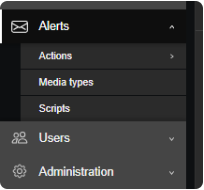
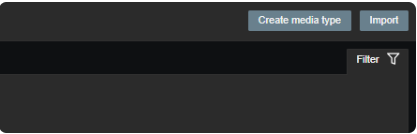
- Click on “Create Media Type”.
- We fill in the following information:
- Name: integration_24c
- Type: Select “Script”.
- Script Name: Enter the name of the script which will be: “zabbix_integration_24c.sh”.
- Script Parameters: Add the following parameters
host={HOST.NAME} service={ITEM.NAME} estado={EVENT.SEVERITY}-{EVENT.RECOVERY.STATUS} problemName={EVENT.NAME} problemId={EVENT.ID} lastValue={ITEM.LASTVALUE1} original_problem_id={EVENT.ID}{TRIGGER.URL} external_id=TOKEN-{HOST.ID}-{TRIGGER.ID}-{EVENT.ID} message={EVENT.NAME} - GENERICO_INFRAESTRUCTURA - Problem started at {EVENT.TIME} on {EVENT.DATE} address={HOST.IP}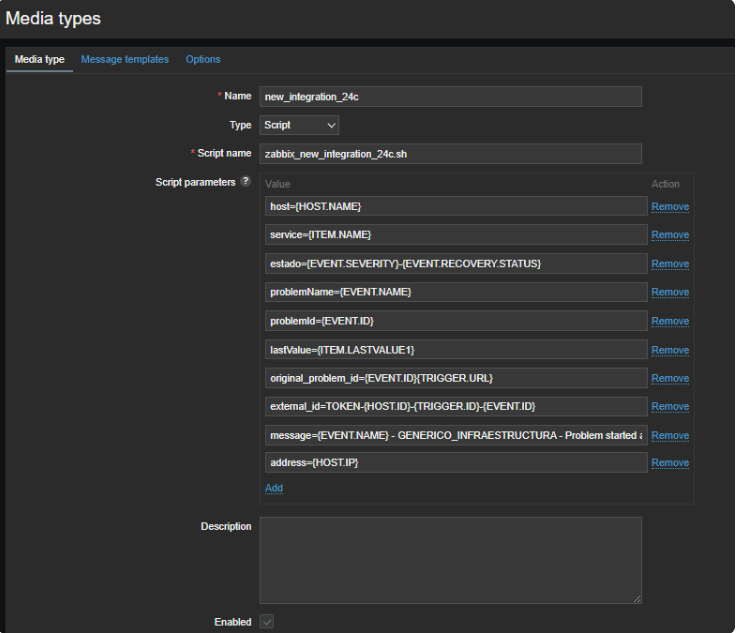
- Then we click on add and we will have our “Media Type” ready.
2. Create a user that links to the 24Cevent token and the corresponding Media Type.
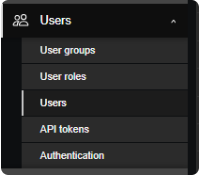
- Go to the “Users” tab
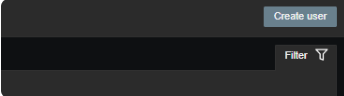
- Then click on the “Create User” button
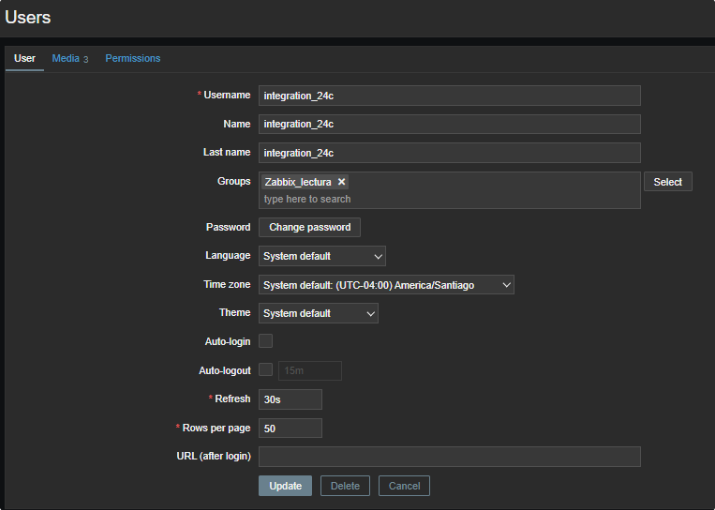
- We fill in the following information:
- Alias: integration_24c
- Groups: Select the group “Zabbix_reading”.
- Password: We give a generic password, since it will only be used as a passing contact, it is not necessary to have access to the platform.
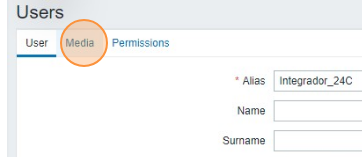
- Go to the “Media” tab
- Press the “Add” button to add a new media.
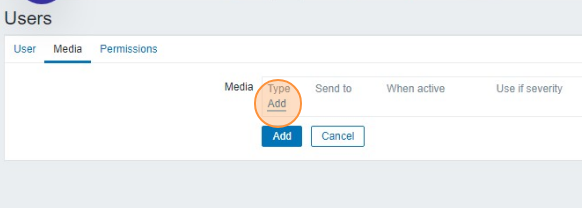
- In the “Type” drop-down menu we select the “Media Type” we created in the previous step.
- In the “Send To” field we can leave it empty, and deselect the severities “Not Classified” and “Information”.
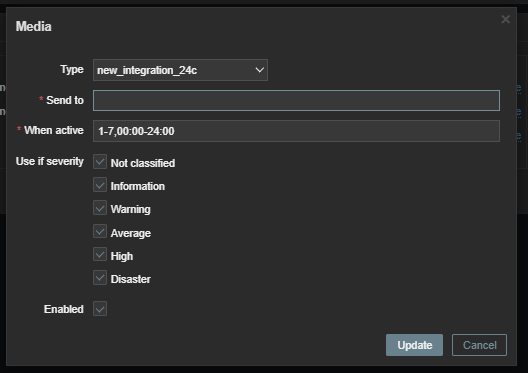
- We finish by pressing “Add” and then “Add” for the user, and with this we will have our user ready.
3. Create an Action that links the user and the Media Type to be used at the time of notification.
To finalize the integration we will have to create “Actions” according to the alerting needs of the different devices/services that we have in the system:
- Go to “Alerts”.

- Then in “Actions”
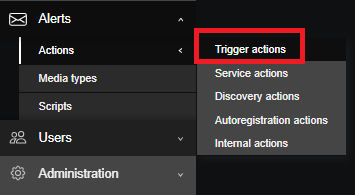
- Then click on the “Create Action” button
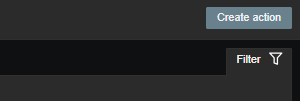
- In this window we add:
- Name: We add a particular name for the action that allows us to identify which host/service or conditions we will use, in this case it will be generic for any case: “Send event to 24Cevent”.
- Conditions: Here we select all alerting conditions that will be linked to the sending of notifications to 24Cevent, in this case, we will select the host “Sauron”, so any alert produced by the host sauron and its services, will be executed this notification action.
- Enabled: Enabled must be activated, otherwise the action will not be generated.
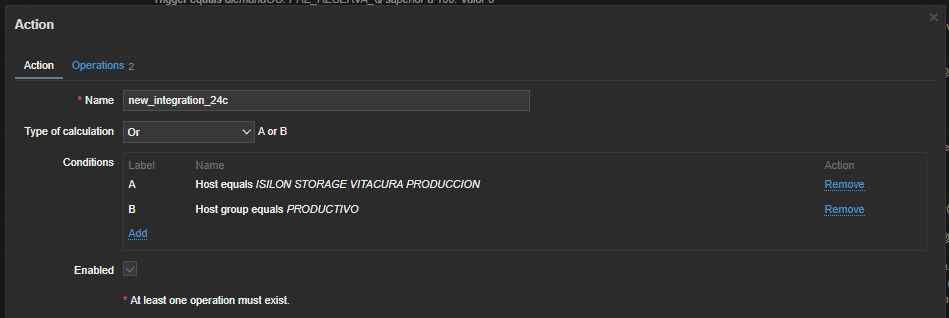
- Then go to the “Operations” tab
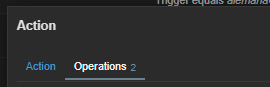
- In this tab in the ‘Operations’ field we will add a new field
- Then in Operations details, we will edit:
- Send to Users: Select the user created for the integration.
- Send only to: Here we will select the “Media Type” that we have generated in the previous step, as this will allow us to make the connection with the script and 24Cevent.
- Enable custom message
- In subject:
Problem: {EVENT.NAME} - In Message:
Problem started at {EVENT.TIME} on {EVENT.DATE} Last value: {ITEM.LASTVALUE1} Problem name: {EVENT.NAME} Host: {HOST.NAME} Service : {ITEM.NAME} Severity: {EVENT.SEVERITY} Original problem ID: {EVENT.ID} {TRIGGER.URL}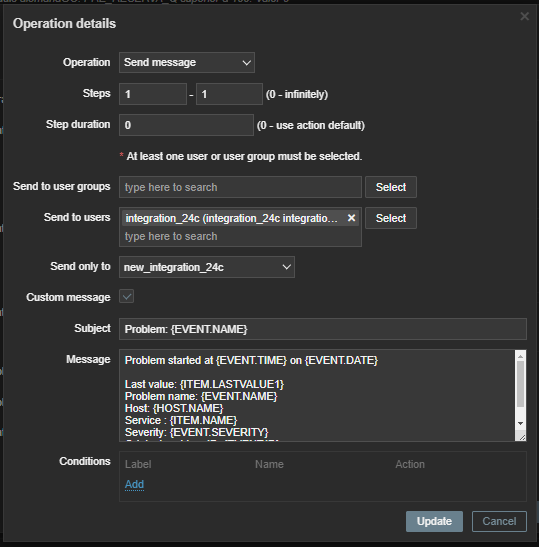
- Once these changes have been made, click on Add and go to the “Recovery Operations” option where you will perform the same action.
Common problems
Check if the folder where the script is located belongs to the zabbix user, because it can generate a write error, which does not allow the integration with the 24cevent event manager.
Inside 24Cevent
First of all, you will see the following panel in the “Integrations” section.

In “Manage” you will be able to test if your integration was successful:

Remember the following tips:
- In order for you to receive alerts directly to 24Cevent, you must “Stop” the test (as these alerts are test only).
- Test alerts must have different IDs or Criticalities if different alerts are to be queued.
In the “Operations” section you will be able to visualize how all your alerts are arriving from Zabbix.
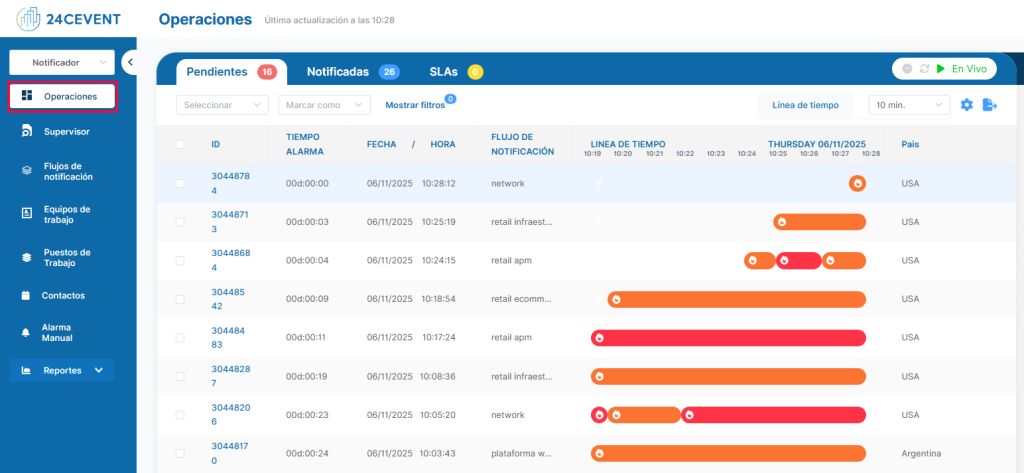
In operations you will see your alerts arrive, to remove them from the “pending” tab you must select them and mark them as “Notified or Solved”, this is usually done with test alerts.
To set up a phone call, you must follow these steps:
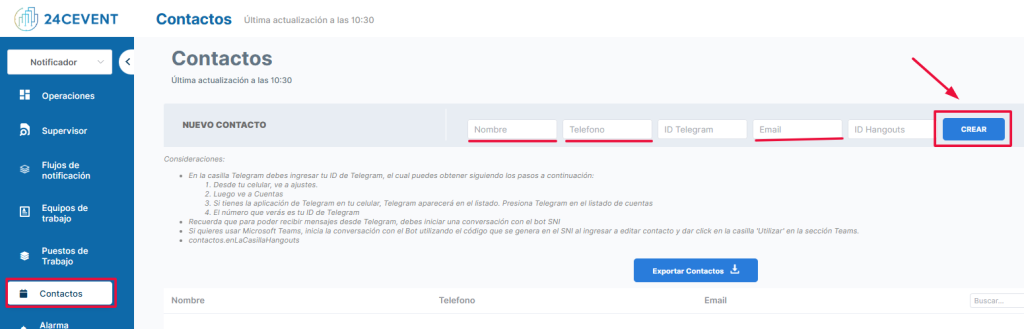
1) Create a contact.
In the “Contacts” section — fill in the boxes: Name, phone and email — Create contact.
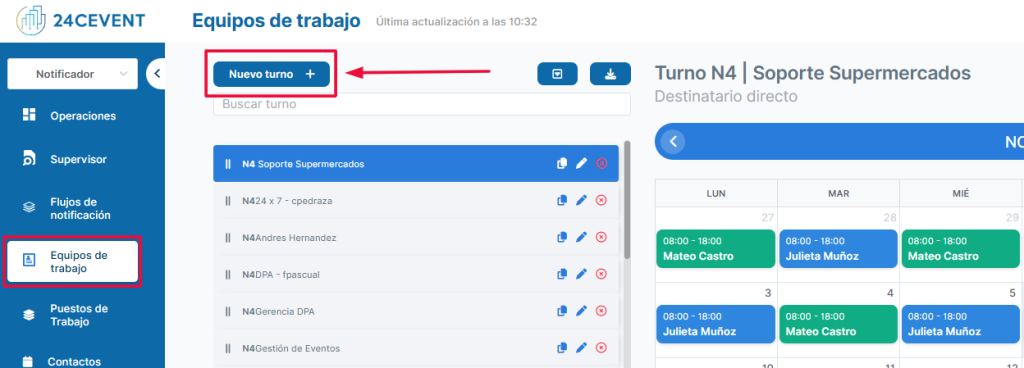
2) Create a shift (working hours of this contact).
In the “Work teams” section — New shift.
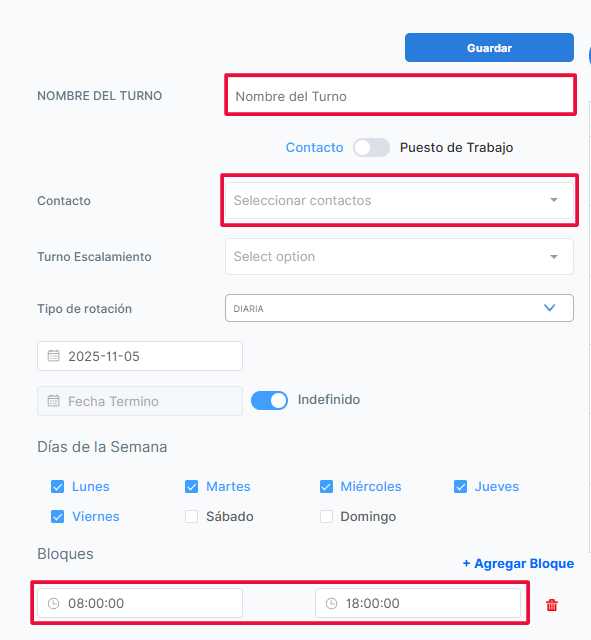
Fill in the requested fields: Shift name — Select contact created — And schedule — Hit the “Save” button.
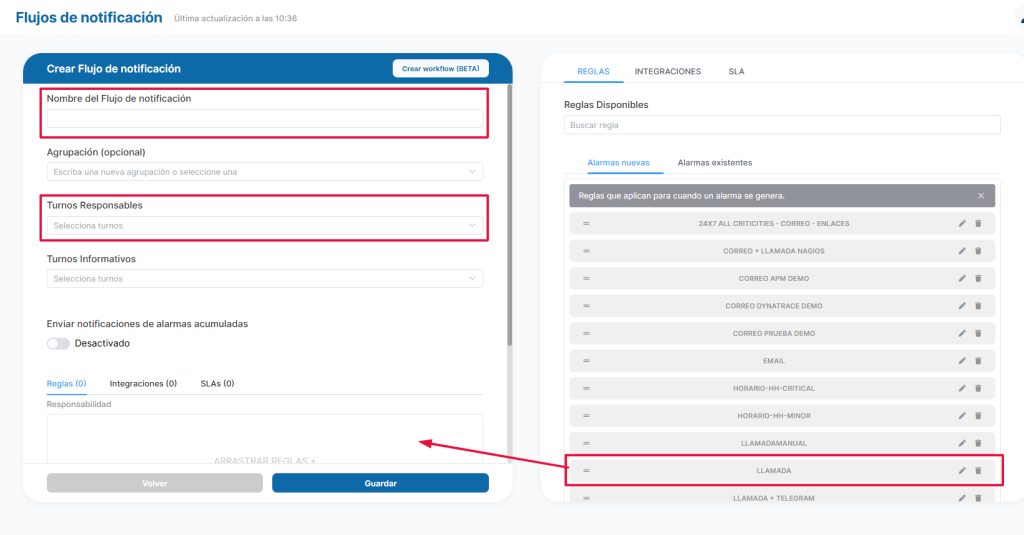
3) Create a notification flow.
Go to “Notification flows” — New notification flow.
Fill in the requested fields: Flow name, Responsible shift, and Drag the “Notification rule”, called for this case. Finally click on save.
Tip: Remember that the notification flow must remain “active”, if you leave it on maintenance you will not receive alerts.
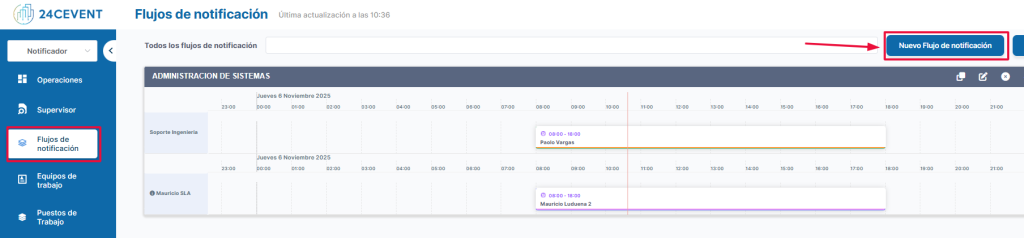
In the main panel you will see your active notification flow:

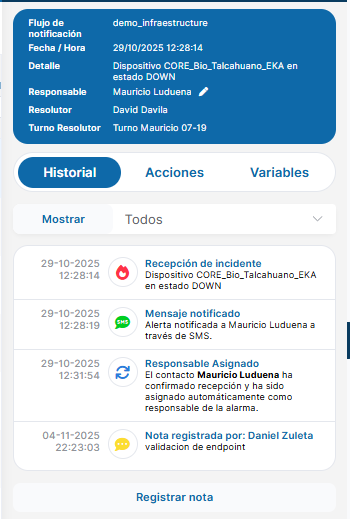
And that’s it, you will start receiving phone calls for your Zabbix alerts:
Conclusion
Integrating Zabbix alarms with 24Cevent phone call notifications is a highly effective strategy for improving incident response in IT environments. This combination enables support teams to be alerted immediately and directly to critical issues, accelerating resolution and reducing business impact. By adding the monitoring capabilities of Zabbix with 24Cevent’s alert management engine, organizations gain an additional layer of reliability and speed that reinforces their observability strategy.
Detecting an incident in time and having sufficient technical information is essential, but just as important is ensuring that the right person receives the alert without delay. That’s where 24Cevent complements Zabbix: it transforms alerts into automatic, prioritized phone calls, ensuring immediate attention even outside business hours.
Implementing a solution like 24Cevent alongside Zabbix’s native notification methods can deliver key benefits:
- 24×7 Support: Enables continuous and cost-effective support, keeping the team informed even in critical moments after hours.
- Optimized MTTA: 24Cevent reduces the time between incident detection and actual notification to the responsible party, lowering the MTTA to seconds.
- Context standardization: Sends clear and homogeneous information to the support team, without depending on the channel or analyst configuring the alert.
- Intelligent parallelization: Makes it possible to notify several teams simultaneously, including external providers, according to defined rules.
- SLA control and measurement: Enables accurate measurement of each stage of the incident cycle, from alert to resolution, ensuring reliable reporting.
Together, Zabbix + 24Cevent form a robust solution for organizations looking to increase their operational maturity. While Zabbix detects events and delivers comprehensive monitoring, 24Cevent ensures that each alert gets to the right people, at the right time, and through a channel that is really hard to ignore: the phone call.
The result is a monitoring ecosystem that is faster, more reliable and aligned with today’s business continuity requirements.
Do you need to make sure that your Zabbix alarms will be attended to at the exact moment they occur?
Forget about having teams monitoring dashboards 24 hours a day. Connect your alerts to 24Cevent, classify them and trigger immediate notifications (including automated phone calls) so that your support team responds promptly to any critical incident.
Get started today with a no-cost, no-obligation free trial and discover how Zabbix + 24Cevent can become your own 24×7 automated operations center.