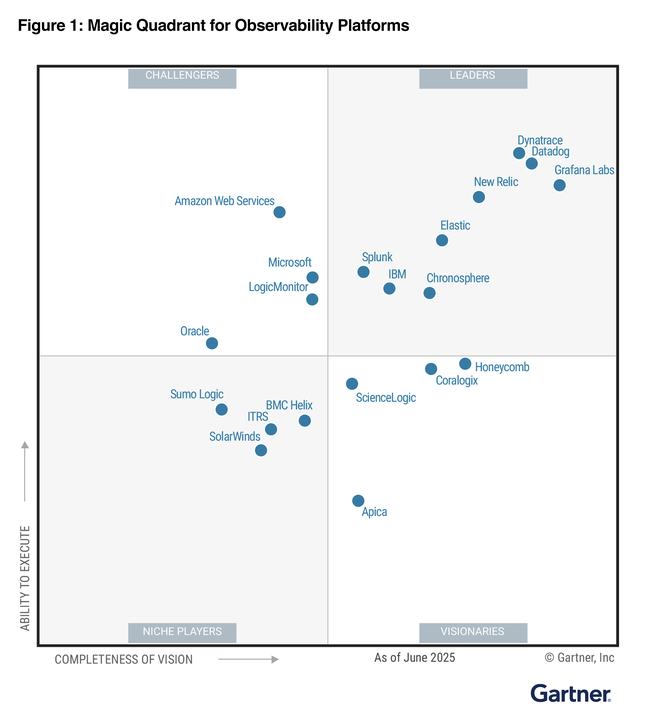
Dynatrace is one of the leading Application Performance Monitors (APM) on the market, capable of intercepting all the traffic of your applications, to detect performance problems and indicate specifically when and why an error occurred, even at the level of code and database queries.
In this article, we show you how to improve incident response by getting your Dynatrace alarms notified by phone calls using 24Cevent software.
Improve your incident response times
One of Dynatrace’s key features is its ability to generate real-time alarms when system problems are detected. These alarms are sent through various channels, such as email, SMS or webhooks, however, phone calls are not natively available. Not having an automatic telephone call system means that any critical incident detected during non-business hours will not be attended to until the beginning of the next working day.
If we want to improve platform uptime and customer experience, improving response times and reducing MTTR (mean time to repair) is one of the most important indicators to achieve this.
Automatic notifications by phone call play 2 critical roles in this process:
- Reduce MTTA (mean time to acknowledge), where by having a predefined decision matrix, the time from when an incident is detected until the person in charge is notified is reduced to a couple of seconds.
- Reduce MTTR by being able to have 24×7 support shifts in case of events.
Configure Dynatrace integration
As a prerequisite, you must have an account created in 24Cevent, the platform that will perform the automatic 24×7 notification of dynatrace alarms by phone calls. There must also be TCP communication between the Dynatrace source and the 24Cevent destination.
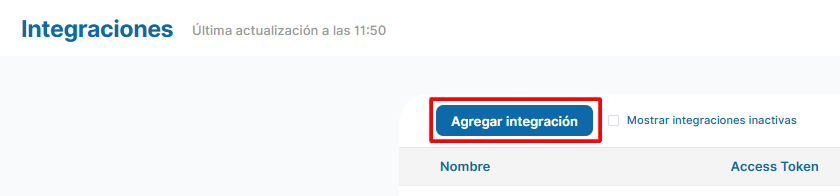
First, in 24Cevent, log in with your credentials and go to the “Integrations” section. There you should click on “Add integration”, and you will see a mini manual on how to correctly connect your integration.
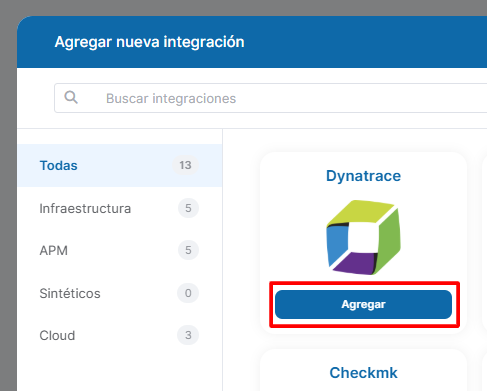
After you have done this step, go immediately to Dynatrace.
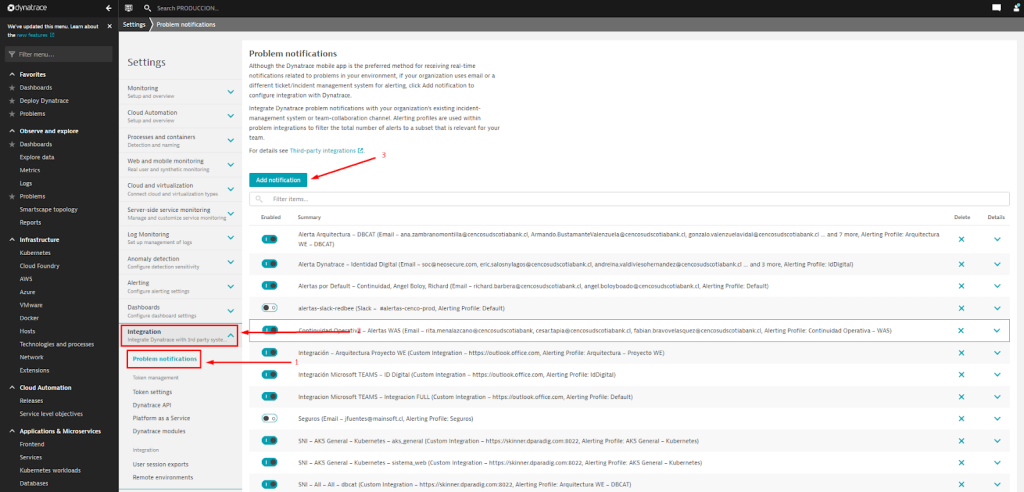
To configure Dynatrace, once you are logged in, go to Settings –> Integrations –> Problem Notifications.
Then select the “Add notification” box.
Once in the menu for creating the new notification rule, select “Notification Type”, “Custom integration”. Then name the new rule in the “Display name” box.
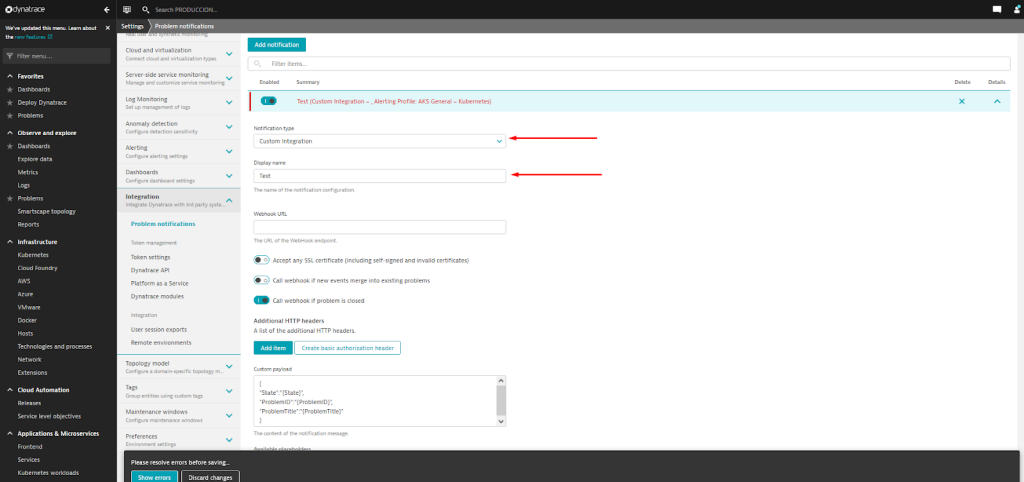
NOTE: To name a notification rule in Dynatrace the following format (recommendation) should be followed: Destination Tool – Alerting Profile Name – 24c Service. For example, 24c – Default – dynatrace_poc_service
In the “Webhook URL” box, the following endpoint created in the integration must be assigned. Of the buttons below, only enable the “call webhook if problem is closed” button.
https://app.24cevent.com/proxy/forwarder/json/?access_token=mbHwdWnlbQh5Xjxu09poeFSgTbHTLs&channel=57abe038374620c2875ebf62ae2027cca5463f25c722be4435fa7eb7c8f456d0&no_receiver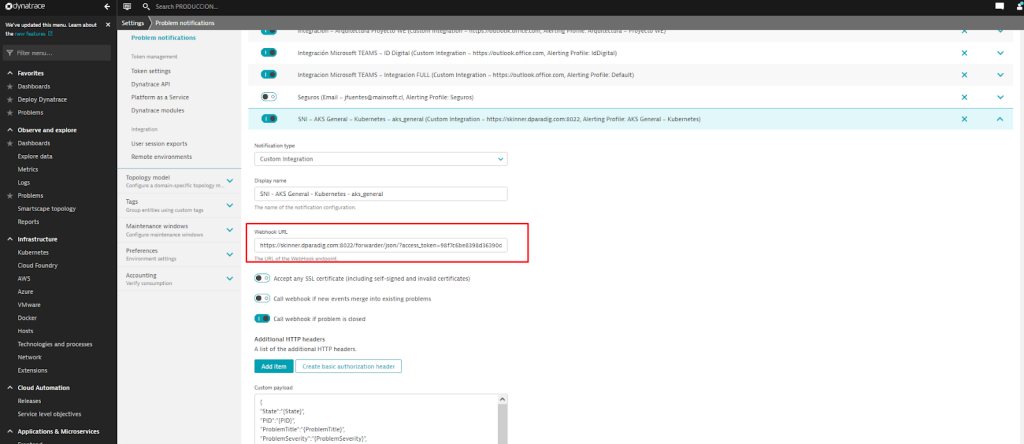
Once we get to the part of adding the Custom Payload, we must complete the following information:
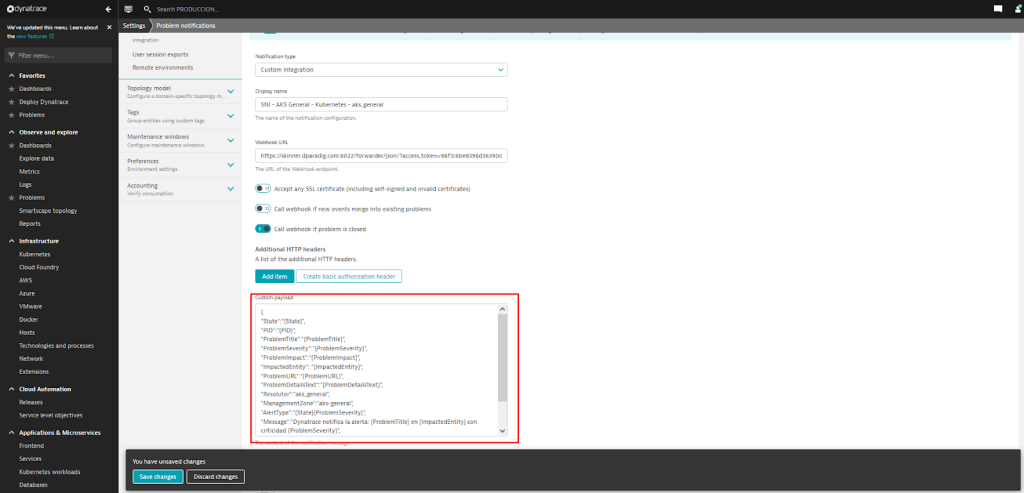
{
  "State":"{State}",
  "PID":"{PID}",
  "ProblemTitle":"{ProblemTitle}",
  "ProblemSeverity":"{ProblemSeverity}",
  "ProblemImpact":"{ProblemImpact}",
  "ImpactedEntity":"{ImpactedEntity}",
  "ImpactedEntityNames":"{ImpactedEntityNames}",
  "ProblemURL":"{ProblemURL}",
  "ProblemDetailsText":"{ProblemDetailsText}",
  "ProblemDetailsJSONv2":{ProblemDetailsJSONv2},
  "Resolutor":"dynatrace_poc_service",
  "ManagementZone":"all",
  "AlertType":"{State}{ProblemSeverity}",
  "Message":"Dynatrace notifica la alerta: {ImpactedEntity}",
  "ExternalId":"{PID}",
  "CustomSubject":"Alerta Urgente",
  "Tags":"{Tags}",
  "NamesOfImpactedEntities":"{NamesOfImpactedEntities}"
}
NOTE: Where we have to manually fill in the following fields:
- “Resolver:” Name of the 24c service where the alert will arrive.
- “ManagementZone:” Administration Zone to which this alert belongs (optional can be blank “”).
- “CustomSubject:” This element is used to add a personalized subject to the mail to be sent (optional).
Finally, in the Alerting Profile drop-down list, we select the Alerting Profile we want or we can leave the default which will notify for all problems. Save the changes and that’s it.
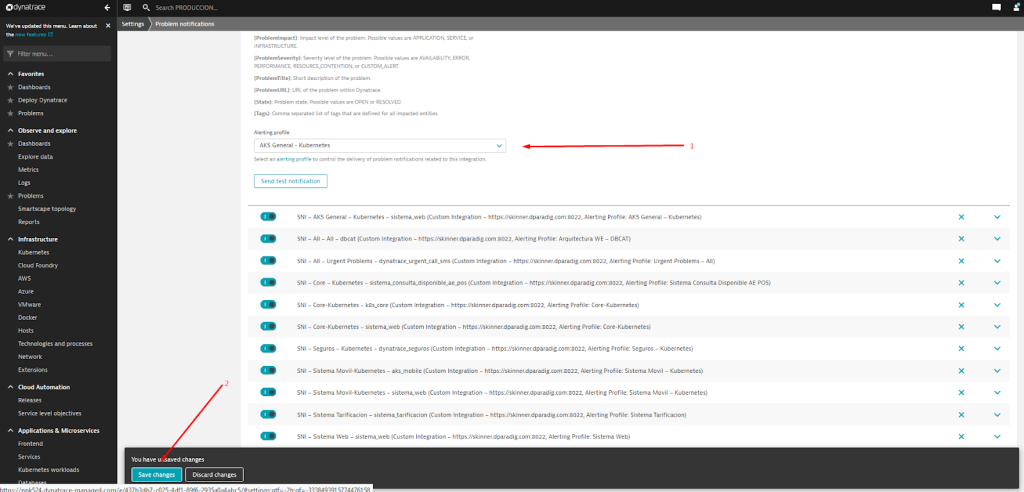
With the integration in place, return to 24Cevent to see how your alerts are being received.
Inside 24Cevent
First of all, you will see the following panel in the “Integrations” section.

In “Manage” you will be able to test if your integration was successful:

Remember the following tips:
- In order for you to receive alerts directly to 24Cevent, you must “Stop” the test (as these alerts are test only).
- Test alerts must have different IDs or Criticalities if different alerts are to be queued.
In the “Operations” section you will be able to visualize how all your alerts are arriving from Dynatrace.
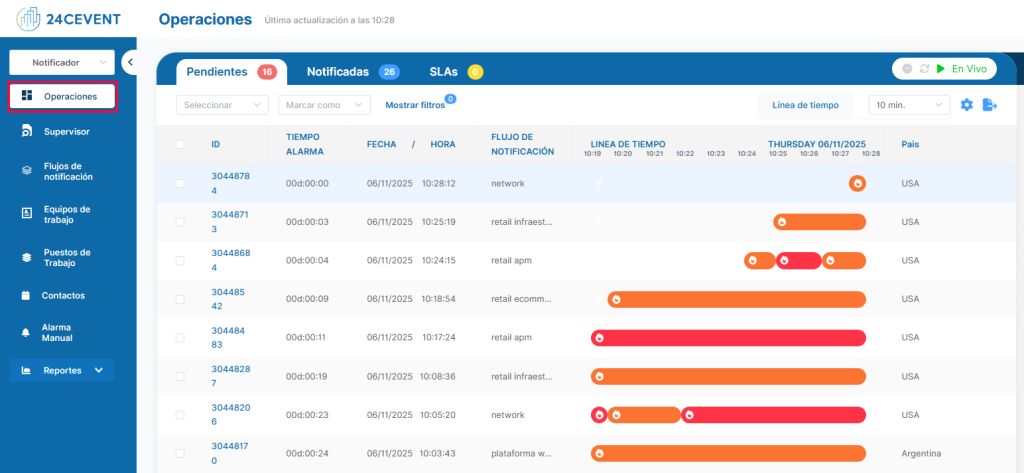
In operations you will see your alerts arrive, to remove them from the “pending” tab you must select them and mark them as “Notified or Solved”, this is usually done with test alerts.
To set up a phone call, you must follow these steps:
1) Create a contact.
In the “Contacts” section — fill in the boxes: Name, phone and email — Create contact.
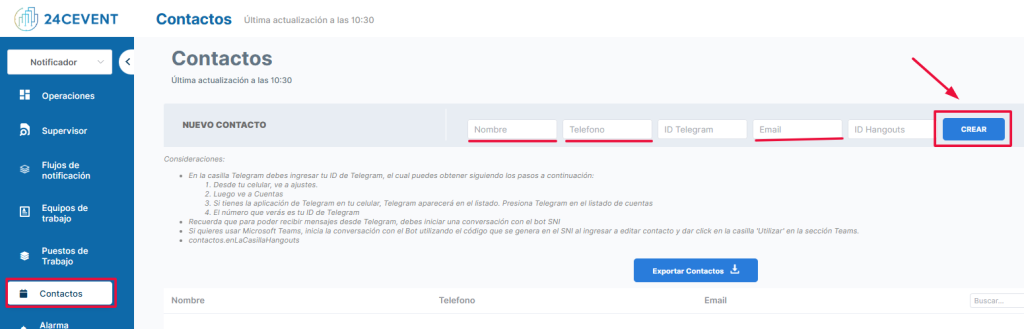
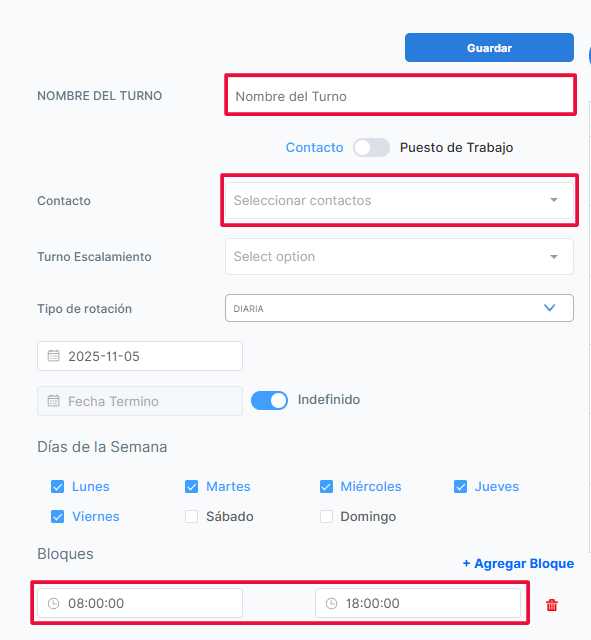
2) Create a shift (working hours of this contact).
In the “Work teams” section — New shift.
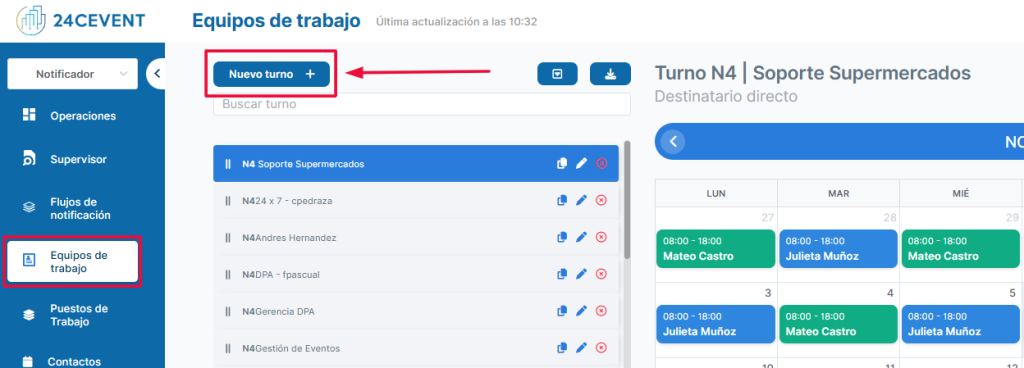
Fill in the requested fields: Shift name — Select contact created — And schedule — Hit the “Save” button.
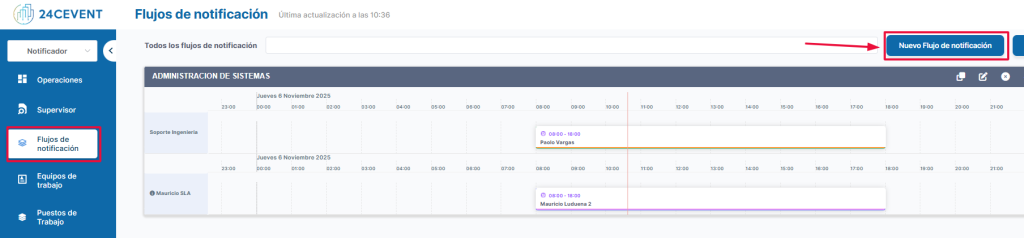
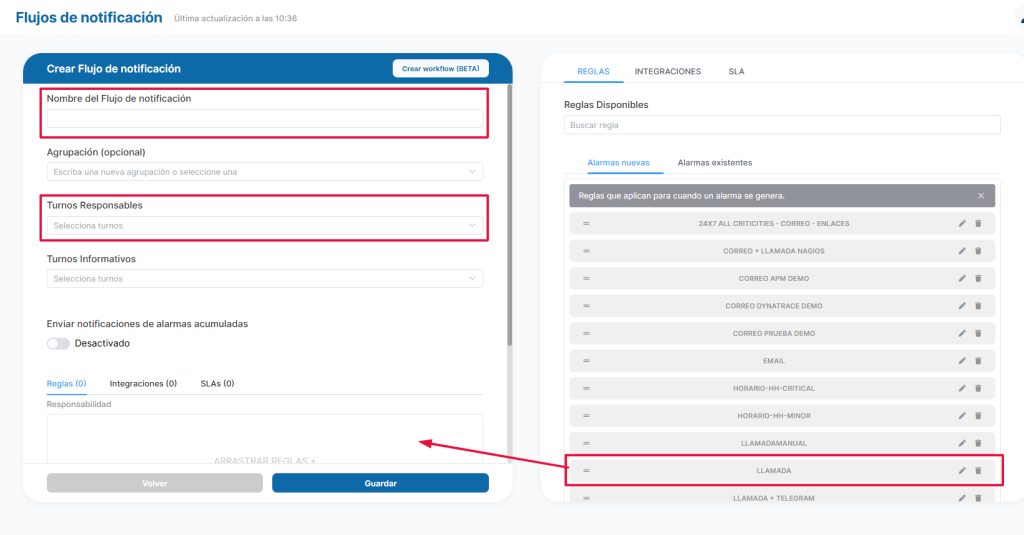
3) Create a notification flow.
Go to “Notification flows” — New notification flow.
Fill in the requested fields: Flow name, Responsible shift, and Drag the “Notification rule”, called for this case. Finally click on save.
Tip: Remember that the notification flow must remain “active”, if you leave it on maintenance you will not receive alerts.
In the main panel you will see your active notification flow:

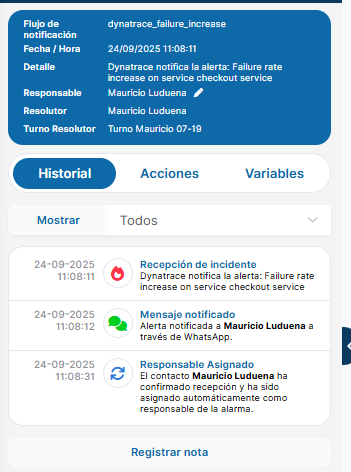
And that’s it, you will start receiving phone calls for your Dynatrace alerts:
Demonstration
In this video, we demonstrate live how the Dynatrace – 24Cevent integration works to generate alarm notification by phone calls.
If you can’t see the video, you can watch it here: https://youtu.be/BMbzoQ6jA_8?si=MMjdWNWHtRug98V8
Conclusion
Dynatrace alarm notification by phone calls through the 24Cevent integration tool is an effective strategy for improving incident response in IT environments. It provides a quick and direct way to alert operations teams to critical issues, resulting in faster resolution and less business disruption. By leveraging this functionality, organizations can strengthen their observability and monitoring capabilities, ensuring the stability and performance of their IT systems.
Early detection of an incident and knowing the root cause is critical. But just as important is that the alarm is handled in a timely manner and that the person trained to resolve the incident is notified as soon as possible to begin working on a solution.
Therefore, implementing an automated phone call notification solution as a complement to native notification methods can provide several benefits:
- 24×7: To be able to provide 24×7 support to the systems at a low cost.
- MTTA: Reducing notification times
- Standardization: To be able to deliver standardized context information to the support team.
- Parallelization: Notifying different equipment simultaneously, including suppliers
- SLA Control: Measure the time elapsed between the generation of an incident and its resolution, in order to generate SLA compliance reports.
Do you need to ensure that your Dynatrace alarms will be managed in a timely manner? Forget about hiring profiles to watch screens day and night, integrate your alerts to 24Cevent, classify them and generate real-time notifications to your support team when incidents occur.
Join today, at no cost and with no commitments in our free level and discover how with 24Cevent you can have your own 24×7 automated operations center.